The OpenSTEM Labs are held on the Open University's Learn5 server. This is a separate server to the main OU module pages.
There are multiple public resources in the OpenSTEM Labs but most require a free user account. If you are an OU student or alumni or have created an account to access OpenLearn you can use your existing login details. Otherwise, please click on 'Sign in' at the top of this webpage where you will be directed to the OU's main sign in page, click on 'Create account' and follow the steps to set up your free user account.
Module activities
Many OpenSTEM Lab activities are used during module teaching and are only visible to students registered on the module. If you are studying a module that uses an OpenSTEM Labs activity you will automatically be added to the access group for that activity. Please consult your module website for instructions on when and how you should incorporate the activity into your studies. If the activity uses live equipment you will usually need to book an access slot and these will become available for booking during the module.
If you have any questions about the module activity, or access to it, please consult the module forums. Additional information is often posted on forums either by the module team or in answer to other student queries. You can also post your question on the forum.
Guest Access
If you have been invited to access OpenSTEM Labs activities as a guest visitor you will need to create an OU account - see above - and give your Personal Identifier (PI) number to the person organising your access.
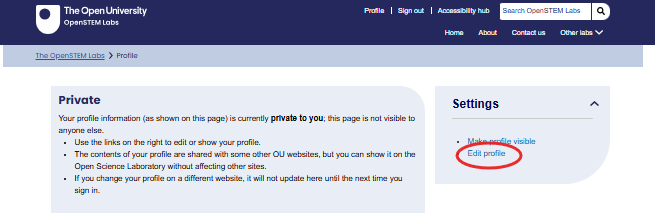
Once you have created your account please return to the OpenSTEM Labs and click on 'Profile' from the menu at the top of the screen. Under 'Settings' select 'Edit profile'.
You can find your PI number at the screen or under 'Optional'. It has the format A1234567 or 1234567A.
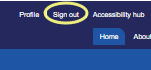
Users can only be added to guest access groups if they have visited the OpenSTEM Labs as a signed in user. Please ensure that you, and any colleagues requiring access, have done this by visiting the lab pages and checking that the top menu says 'Sign out'. If it still says 'Sign in' then please do sign in and return to the lab pages.